


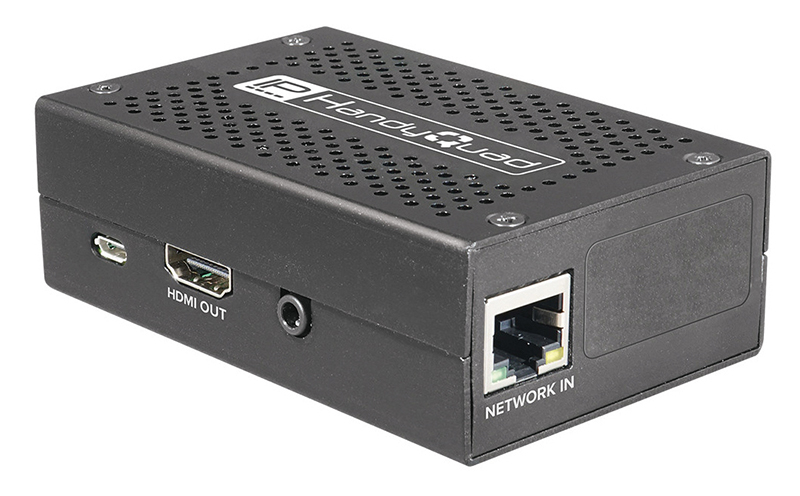
The System Q HandyQuad is a small network device that can be used to display images from network camera RTSP streams. Display options include Single view, Quad view and Picture in picture. It can be PoE powered or fed from a 5-volt 2.5A power supply. A single RJ45 port is used to connect to the network, and an HDMI socket feeds into a display monitor.
Getting started
The HandyQuad unit is just 96 x 61 x 32mm excluding connectors so can readily be fitted into an equipment cabinet or fitted to the rear of a display monitor. This model has just four connectors; an RJ45 for PoE enabled network connection, a 2.5mm jack, a micro-USB for 5v input, and an HDMI video output socket. The 5v power input must not be used if connecting to a PoE enabled network port.
Operation
Once powered the unit goes through an initialisation sequence that starts with a blank display screen for the first twenty seconds until a central HandyQuad logo appears with the version number and MAC address at the bottom. After a further brief blank screen at 54 seconds, the screen is redrawn at 57 seconds but with the IP address showing below. This only shows for around 4 seconds and is followed by the screen showing four quad regions, each with a central logo and the message “Connecting…” at the bottom of each quad. The 4 second appearance of the IP address is the opportunity to note the IP address rather than using network search tools. Although the device has DHCP set by default it was noted that at first power-up, the device showed its initial static IP address of 169.254.0.10 rather than its DHCP allocated address, however, this showed correctly on subsequent reboots.
Once set up, the device boots up and displays its quad image in approximately 1 minute 5 seconds. The device is accessed using a web browser and selecting the HandyQuad’s IP address. After entering the unit’s default Username and Password the menu is displayed.
It is specified that video streams must have a maximum resolution of 1280 x 1070p at up to 12 fps for quad views, single picture resolution can be up to 1920 x 1080p which is also the output resolution. This means that you must ensure that any system cameras have an available stream that can be set to 1280 x 1070 or a lower resolution, and this stream must be selected when entering the RTSP stream commands into the Camera Settings page of the unit’s menu system. If higher resolution streams are called then they will not display and may cause the whole system to show a blank screen, so it is necessary to ensure that this element of the setup is understood. A range of example RTSP commands is given for some of the camera and NVR suppliers, for others you may need to contact the manufacturers support services or perform a web search.
Read the full review in the December 2025 edition of PSi magazine
